
Install Agent Studio
Agent Studio is a local workspace for building Sapiom agents with Claude Code or Codex. It combines a coding-agent session with project discovery, a deterministic Canvas, local testing, deploy actions, and production runs. Desktop and npx are two hosts for the same Studio experience.
Desktop app
Section titled “Desktop app”The desktop app is available for the platforms represented by the current stable release assets:
| Platform | Package |
|---|---|
| macOS on Apple silicon | Download .dmg |
| Windows x64 | Download .exe |
| Linux x86_64 | Download AppImage |
| Debian or Ubuntu on amd64 | Download .deb |
-
Install the package. On macOS, open the
.dmg, drag Sapiom to Applications, and open it there. The current Mac release is signed and notarized. On Windows, run the.exe. On Linux, install the.debthrough your package manager or make the AppImage executable before opening it:Terminal window chmod +x ~/Downloads/Sapiom-Linux-x86_64.AppImage~/Downloads/Sapiom-Linux-x86_64.AppImage -
Let Studio prepare its runtime. You do not need to install Node separately for the desktop app. It supplies Node, npm, and npx support. Studio accepts an installed Claude Code or Codex executable. When neither is available, it attempts a per-user Claude Code installation and shows both manual installation options if that fails.
-
Connect your Sapiom account. Studio reuses a credential already stored at
~/.sapiom/credentials.json. On a clean desktop install, it opens browser sign-in. Complete that flow before using Studio’s project, coding-session, or Local Run features. If authentication is cancelled or unavailable, retry sign-in; signed-out agent authoring is not a supported path. -
Choose session sharing. First launch asks whether to share detailed prompts, tool calls, and session events with Sapiom. This is off by default. The lighter product-analytics setting is separate and can be changed in Studio.
-
Open the welcome screen. Studio chooses the most recent valid folder or prepares
~/.sapiom/harness, then opens without starting a coding-agent session. Choose Open folder for existing work or Browse templates for a runnable starter. When you start a session, use the Coding agent menu to choose Claude Code or Codex.
Command line
Section titled “Command line”Use this host when you already have:
- Node.js 20 or newer;
- at least one supported coding agent on your
PATH: Claude Code asclaude, or Codex ascodex; and - network access for the first uncached
npxand Sapiom MCP downloads.
From the folder where you want Studio to work, run:
npx @sapiom/agent-studio@latestOr pass one existing folder explicitly:
npx @sapiom/agent-studio@latest ./my-projectThe command-line launch verifies Node 20+ and reports Claude Code, Codex, and Git availability. It starts when either coding agent is installed, preferring Claude Code only when both are available. Git is useful for project workflows, but its doctor result does not prevent Studio from opening. The command-line host does not install a coding agent for you.
On first launch, Studio asks about detailed session sharing, starts a local server on 127.0.0.1:4100, prints its tokenized URL, and opens that URL in your browser. It deliberately does not start a coding-agent session until you choose a folder or template. Keep the terminal running while Studio is open; press Ctrl+C to stop the server and its managed sessions.
The command-line launch reuses cached credentials. If no credential is available, complete browser sign-in from the account menu before using Studio, or add --login to authenticate before Studio starts. Local project inspection and Local Run stay on your machine after sign-in, but they are not available as an unauthenticated Sapiom workflow.
What you see first
Section titled “What you see first”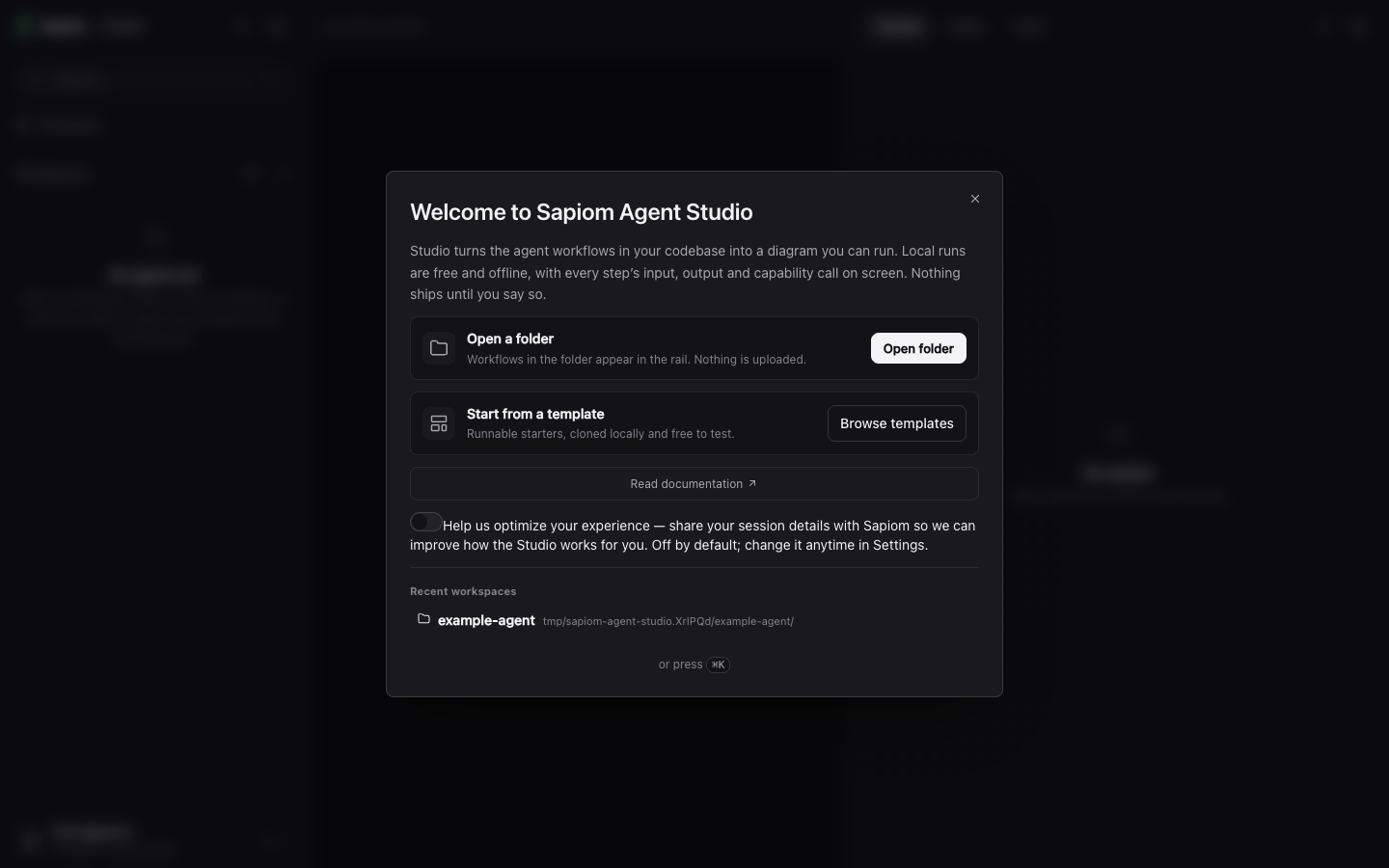
Released @sapiom/[email protected] first-open screen. No coding-agent session is running yet; the launch folder is listed so it can be reopened.
Configuration boundary
Section titled “Configuration boundary”Agent Studio generates session-scoped Sapiom MCP configuration and authoring instructions for Claude Code and Codex. It does not edit either coding agent’s global MCP configuration, account, subscription, or model choice. Local project files stay on your machine until you explicitly use an authenticated cloud action such as deploy or production run.
Next steps
Section titled “Next steps”Uninstall
Section titled “Uninstall”Stop a command-line Studio with Ctrl+C; npx does not install a global Studio executable. For the desktop host, quit Sapiom and use your operating system’s normal application-removal flow.
Removing the app does not remove ~/.sapiom/harness session and workspace state, session-directory .sapiom/ files, shared credentials, or coding-agent history. Review Account and privacy and the Agent Studio file reference before deleting any of those separately.
© 2026 Sapiom, Inc.