
Project map and map chat
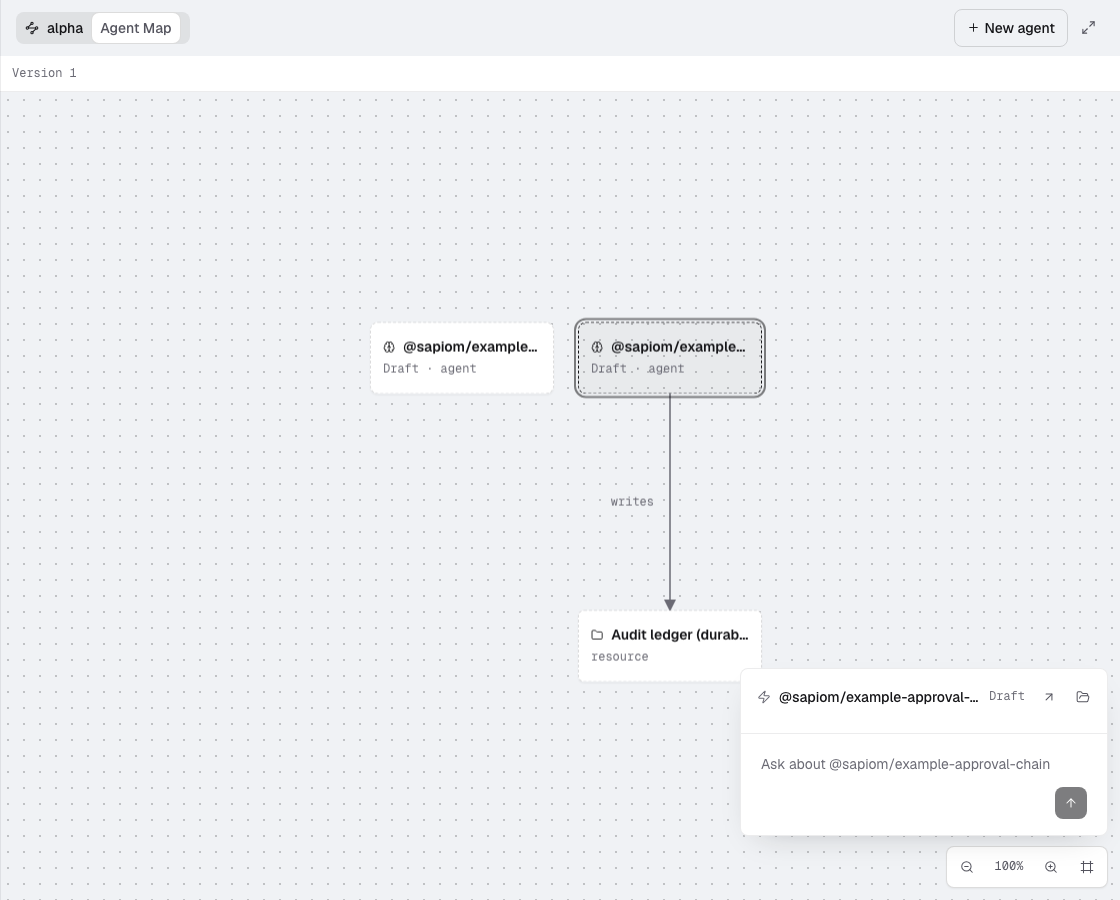
Click a project on the rail to open its project view: the project’s Agent Map at full width, with a card floating over its bottom-right corner. The card never changes the map’s width, so nothing on the map moves when it opens or grows.
The card
Section titled “The card”What the card shows follows what you pick on the map:
| You pick | The card shows |
|---|---|
| Nothing (the project) | One composer, Ask about this project. |
| An agent | One row: the agent’s name, Deployed or Draft, and two icon buttons: Open agent (↗) and Open in Finder (folder; Show in Explorer on Windows, Open folder on Linux). Below it, Ask about the agent. |
| A resource, connector or artifact | The same row without the two buttons, and the composer. |
Open agent, or a double-click on the node, opens the agent modal over the map. Open in Finder shows the agent’s folder in your file manager. Press Escape or click empty map to return the card to the project. With the map chat open, the first Escape closes the chat back to the card.
An agent the map cannot open (its implementation is missing or ambiguous) stays on the map, and the map header says why.
App Links in the project header
Section titled “App Links in the project header”The project header, after the project name and Agent Map, lists the project’s App Links:
- each deployed agent’s published App Link, labelled with the agent’s name, which opens its URL;
- each dev server a live session of this project started, shown as
localhost:PORT · not deployed, which opens it locally.
A dev server is listed only for the project whose session started it, and only while that session is live. Limits:
- Reloading the page forgets dev-server links until a session starts a dev server again.
- A session that starts two dev servers lists only the latest.
- Studio finds dev servers in your coding agent’s tool calls: any
localhost:PORTin a tool call’s input or output is listed, even one that is not a server, except Studio’s own ports. A server you start yourself in the terminal is not listed.
Map chat
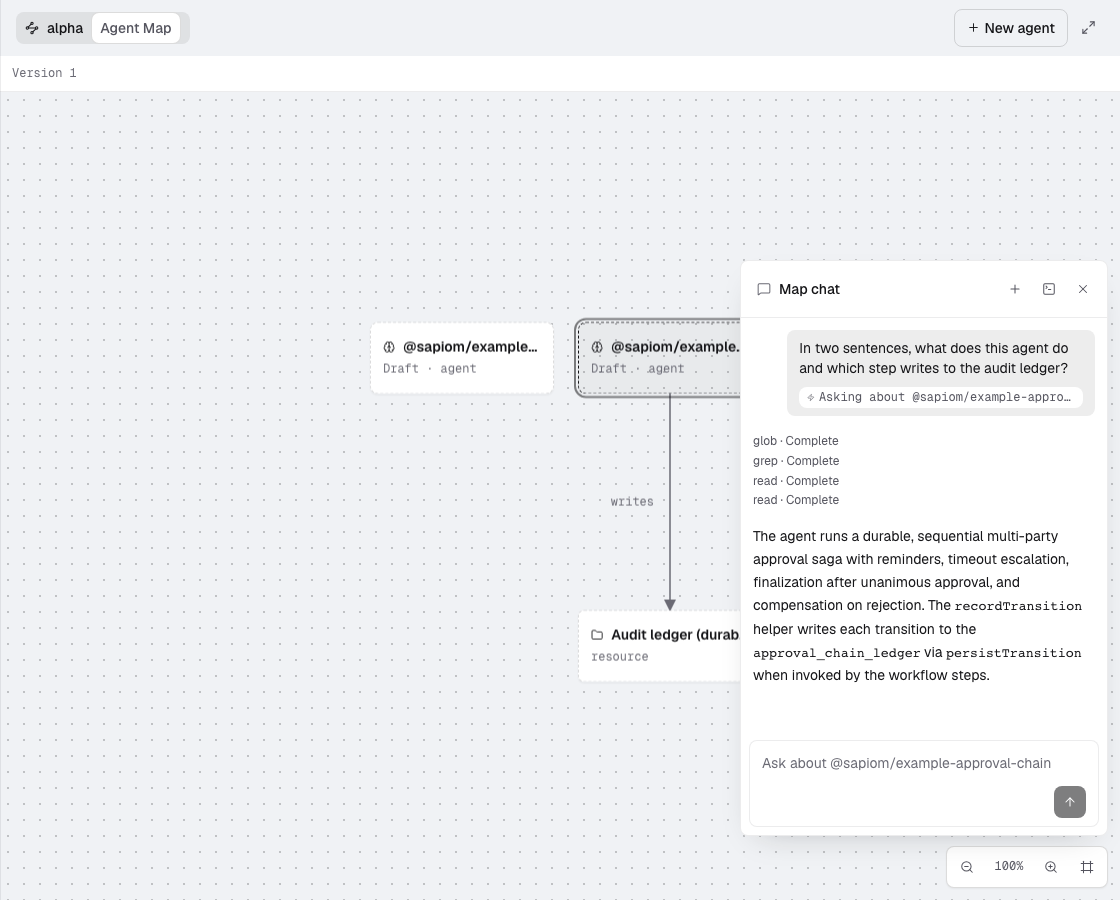
Section titled “Map chat”Type in the card’s composer and press Enter to ask the project’s map chat. Use it for quick questions about the project and its agents: what an agent does, where a step gets its input, which agents call a capability.
- The map chat is not a session. It never appears on the rail and starts no Claude Code or Codex process.
- Each project has one map chat. Every question extends it, across node picks and after you close the card, until you press New chat. It is kept when Studio restarts.
- Each message carries a chip such as Asking about weekly-report · agent. Studio adds the picked node’s name, kind and path to your question; pick another node and the next message is about that one.
- The chat opens in the card, over the map. While a reply streams, the send button becomes Stop. × closes the chat back to the card and keeps the conversation.
- Open in session (the terminal icon in the chat’s header) starts a new terminal session at the project root and shows it. Its first message points at an attached file holding the map-chat transcript and the selection, so the session starts with what you asked on the map.
What the map chat can and cannot do
Section titled “What the map chat can and cannot do”The map chat can read the project and call hosted Sapiom tools. It never edits files: any change request (add or edit a step, an agent, a file or a setting; fix, build or create) becomes a hand-off.
It cannot:
- edit or create files;
- run shell commands: it has no shell tool;
- ask you for permission: anything that would need it (files outside the project,
.envfiles, questions back to you) is declined instead of waiting for an answer.
When a request needs one of those, or changes anything, the map chat offers a hand-off instead of doing it.
Hand-off card
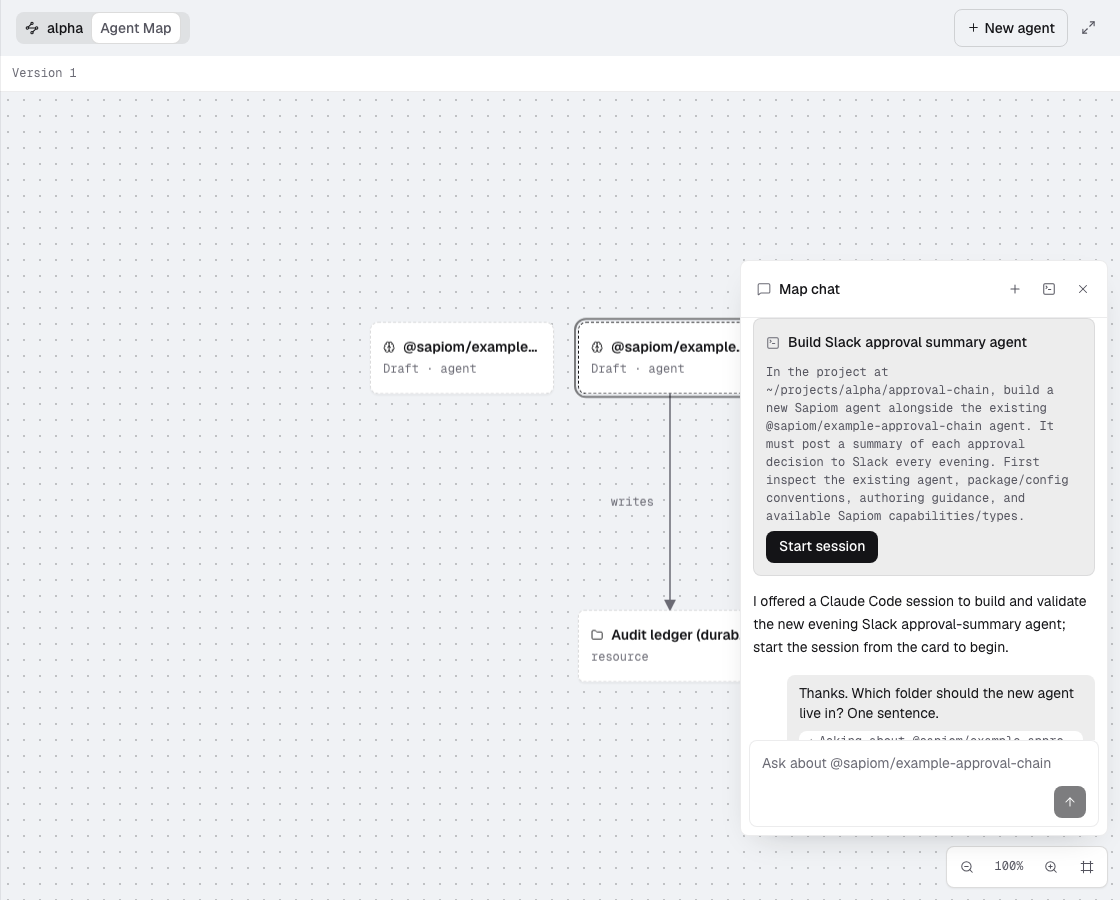
Section titled “Hand-off card”A hand-off is a card in the map chat with a title, the prompt the chat wrote for that job, and Start session. The map chat offers one on its own for the work above, and you can ask for one.
Start session creates a Claude Code terminal session at the project root with that prompt as its first message. Adding a project to Studio marks its root as trusted for Claude Code, so this session, and one from Open in session, starts without Claude Code’s “Do you trust the files in this folder?” prompt, including in projects you added earlier. The session appears on the rail and its row pulses once. You stay on the map with the chat open and can keep asking. The card then shows Open session, which takes you to the session when you want it.
© 2026 Sapiom, Inc.